Using Wing with Twisted

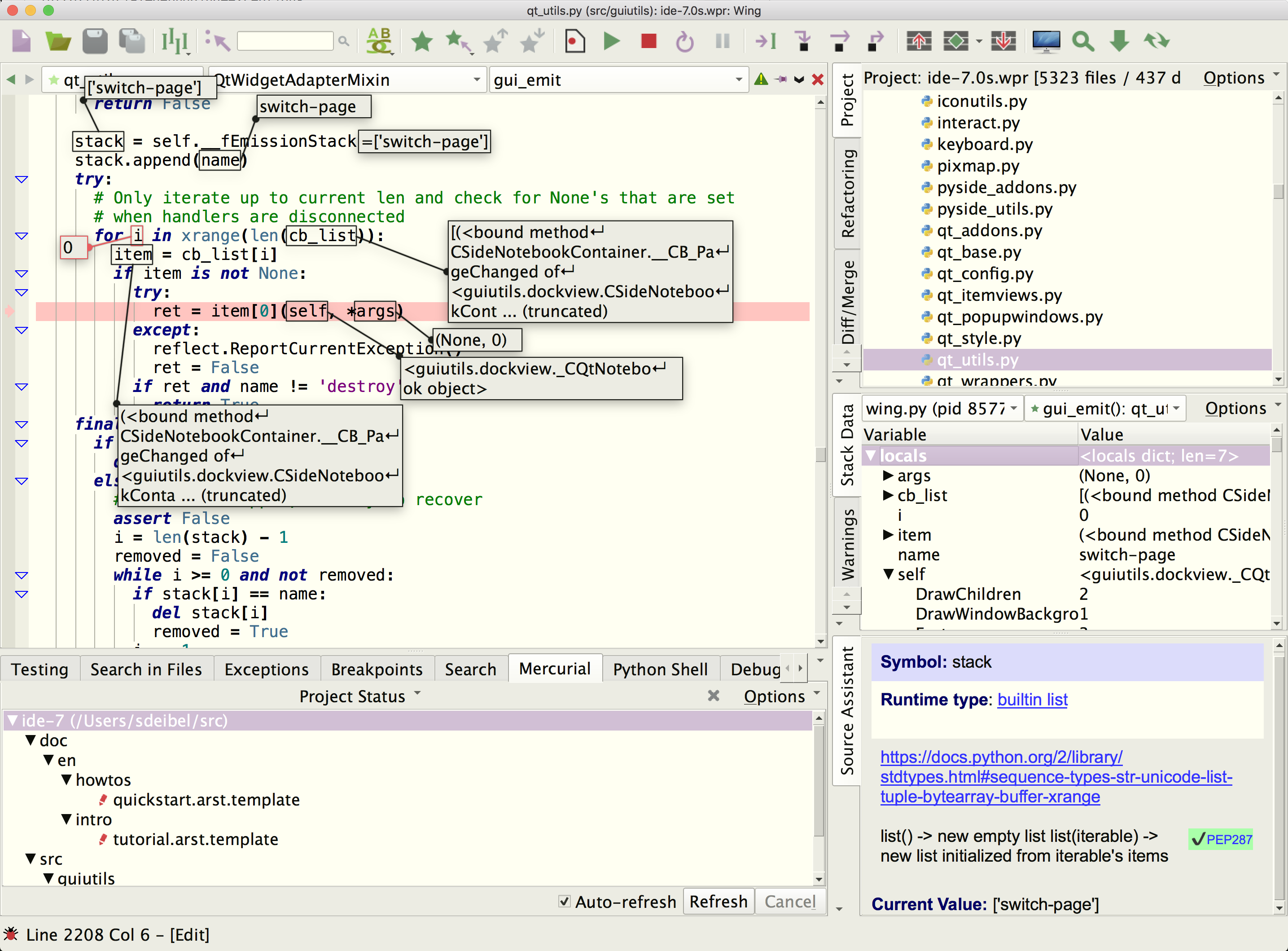
Wing Pro is a Python IDE that can be used to develop, test, and debug Python code written for Twisted.
If you do not already have Wing Pro installed, download it now.
This document describes how to configure Wing for Twisted. To get started using Wing as your Python IDE, please refer to the tutorial in Wing's Help menu or read the Quickstart Guide.
Note: This document is not being maintained and was last tested with Twisted version 8.
Project Configuration
To create a new project, use New Project in Wing's Project menu. Select the project type ``Twisted and under Python Executable select Custom and then enter the full path of the Python you plan to use with Twisted. You can determine the correct value to use by executing the following commands interactively in Python. If you are using virtualenv, this will be the virtualenv's Python executable:
import sys
sys.executable
Press OK and then add the directory with your source code to the new project with Add Existing Directory in the Project menu.
Remote Development
Wing Pro can work with Twisted code that is running on a remote host, VM, or container. To do this, you need to be able to connect to the remote system with SSH. Then you can create your project in the same way as above, using the Connect to Remote Host via SSH project type. See Remote Hosts for more information on remote development with Wing Pro.
Debug Configuration
To debug Twisted code launched from within Wing, create a file with the following contents and set it as your main entry point by adding it to your project and then using the Set Main Entry Point item in the Debug menu:
from twisted.scripts.twistd import run
import os
try:
    os.unlink('twistd.pid')
except OSError:
    pass
run()
Then go into the File Properties for this file (by right clicking on it) and set Run Arguments as follows:
-n -y filename.tac
The -n option tells Twisted not to daemonize, which would cause the debugger to fail because sub-processes are not automatically debugged. The -y option serves to point Twisted at your .tac file. Replace filename.tac in the above example with the correct name of your file.
Wing Pro may be able to debug Twisted without the -n option, if you enable Debug Child Processes under the Debug/Execute tab of Project Properties, from the Project menu.
You can also launch Twisted code from outside of Wing as described in Debugging Externally Launched Code in the manual.
Related Documents
For more information see:
- Twisted home page, which provides links to documentation.
- Quickstart Guide contains additional basic information about getting started with Wing.
- Tutorial provides a gentler introduction to Wing's features.
- Wing Reference Manual documents Wing in detail.