Using Wing with Google App Engine SDK for Python

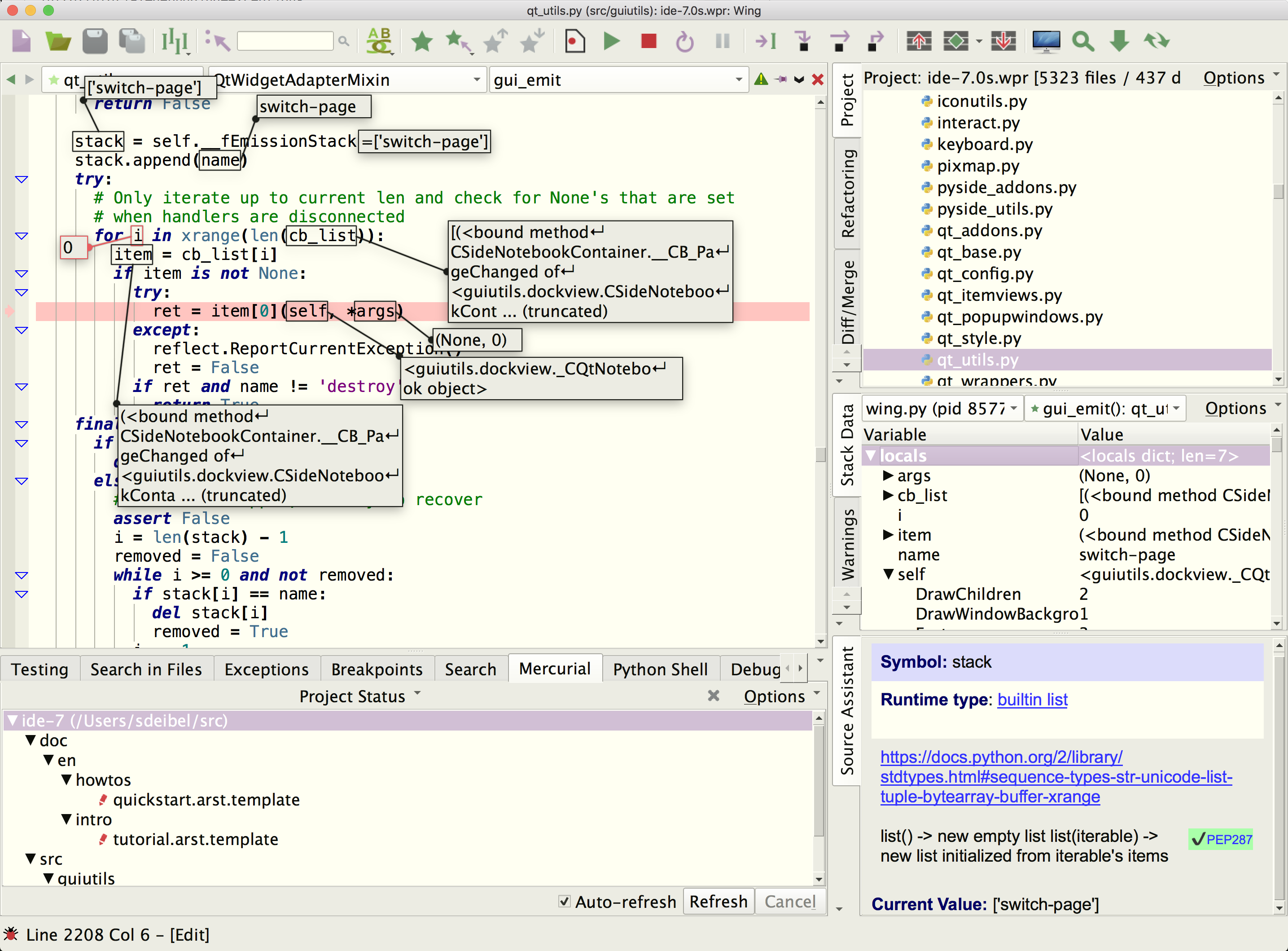
Wing Pro is a Python IDE that can be used to develop, test, and debug Python code written for Google App Engine SDK for Python. Wing Pro provides auto-completion, call tips, a powerful debugger, and many other features that help you write, navigate, and understand Python code.
If you do not already have Wing Pro installed, download it now.
This document describes how to configure Wing Pro for Google App Engine. To get started using Wing Pro as your Python IDE, please refer to the tutorial in Wing Pro's Help menu or read the Quickstart Guide.
Note: This document is not being maintained and was last tested with Google App Engine version 1.9.
Creating a Project
Before trying to configure a project in Wing Pro, first install and set up Google App Engine SDK for Python and verify that it is working by starting it outside of Wing and testing it with a web browser.
Next, create a project in Wing Pro with New Project in the Project menu and selecting Google App Engine as the project type. Then use Add Directory in the Project menu to add your source directories to the project. You should also add at least dev_appserver.py, which is located in the top level of the Google SDK directory.
Next open up dev_appserver.py in Wing's editor and select Set Current as Main Entry Point in the Debug menu. This tells Wing to use this file as the main entry point, which is then highlighted in the Project tool.
Next you need to go into Project Properties and set Debug/Execute > Debug Child Processes to Always Debug Child Processes. This is needed because App Engine creates more than one process.
Finally, save your project with Save Project in the Project menu. Store the project at or near the top level of your source tree.
Configuring the Debugger
Before trying to debug make sure you stop Google App Engine if it is already running outside of Wing.
You can debug code running under Google App Engine SDK for Python by selecting Start / Continue from the Debug menu or using the green run icon in the toolbar. This displays a dialog that contains a Run Arguments field that must be altered to specify the application to run. For example, to run the guestbook demo that comes with the SDK, the run arguments would be "${GOOGLE_APPENGINE_DIR}/demos/guestbook" where ${GOOGLE_APPENGINE_DIR} is replaced by the full pathname of the directory the SDK is installed in. The quotation marks are needed if the pathname contains a space. In other apps, this is the path to where the app.yaml file is located. If this path name is incorrect, you will get an error when you start debugging.
You can also leave the environment reference ${GOOGLE_APPENGINE_DIR} in the path and define an environment variable under the Environment tab of the Debug dialog. Or use ${WING:PROJECT_DIR} instead to base the path on the directory where Wing's project file was saved.
For most projects, you'll need to add at least --max_module_instances=1 to the run arguments, and you may also want to add --threadsafe_override=false. These command line arguments disable some of GAE's threading and concurrency features that can prevent debugging from working properly.
Add a --port=8082 style argument if you wish to change the port number that Google App Engine is using when run from Wing's debugger. Otherwise the default of 8080 will be used.
Using a partial path for the application may also be possible if the Initial Directory is also set in under the Debug tab.
Next, click the OK button to save your settings and start debugging. Once the debugger is started, the Debug I/O tool (accessed from the Tools menu) should display output from App Engine, and this should include a message indicating the hostname and port at which App Engine is taking requests.
If Google App Engine asks to check for updates at startup, it will do so in the Debug I/O tool and you can press "y" or "n" and then Enter as you would on the command line. Or send the --skip_sdk_update_check argument on the command line to dev_appserver.py to disable this.
Using the Debugger
After you have configured the debugger, set a break point in any Python code that is executed by a request and load the page in the browser. For example, to break when the main page of the guestbook demo is generated, set a breakpoint in the method Mainpage.get in guestbook.py. When you reach the breakpoint, the browser will stop and wait while Wing debugs the code.
From here, you can step through code or inspect the program state with Stack Data and other tools. The Debug Console provides a command line that allows you to interact with the current stack frame in your debug process. All the debugging tools are available from the Tools menu. You can also see data values by hovering the mouse over symbols in the editor or Debug Console and you can press F4 to go to the point of definition of any symbol.
Continue running with the green run button in the toolbar. Unless another breakpoint or exception is reached, this shoud complete the page load in the browser.
You may edit the Python code for an application while the App Engine is running, and then reload in your browser to see the result of any changes made. In most cases, there is no need to restart the debug process after edits are made. However, if you try the browser reload too quickly, while App Engine is still restarting, then it may not respond or breakpoints may be missed.
To learn more about the debugger, try the Tutorial in Wing Pro's Help menu.
Improving Auto-Completion and Goto-Definition
Wing can't parse the sys.path hackery used by Google App Engine SDK for Python so it may fail to find some modules for auto-completion, goto-definition and other features. To work around this, set a breakpoint in _run_file in dev_appserver.py and start debugging. Then, after script_name has been set, in the Debug Console tool type the following:
os.pathsep.join(_PATHS.script_paths(script_name))
Copy this to the clipboard and open up the file properties for dev_appserver.py by right-clicking on the file. Then, in Project Properties under the Environment tab select Custom for the Python Path, click on the View as Text button and paste in the extra path.
You will need to redo this if you move the app engine installation, or you can use ${WING:PROJECT_DIR} in the paths to based them on the location of the project file.
Debugging Multiple Applications
To set up multiple entry points without needing to change the file properties for dev_appserver.py, use Named Entry Points in the Debug menu. Each Named Entry Point can contain a different commands line and environment for dev_appserver.py.
In this case, configuration of Python Path and other values mentioned above is done in the Launch Configuration used in each Named Entry Point.
Notes
App Engine runs code in a restricted environment that prevents access to some system information, including process ID. This causes some of the sub-processes created by App Engine to be shown with process id -1. In this case they are not listed as children of the parent process and you will need to kill both processes, one at a time, from the toolbar or Debug menu.
Windows users may need to set the TZ environment variable to UTC via the environment field in Project Properties to work around problems with setting os.environ['TZ'] while a process is running (this is a Windows runtime bug). One possible symptom of this is repeated 302 redirects that prevent logging in or other use of the site.
Related Documents
For more information see:
- Google App Engine SDK for Python for downloads and documentation.
- Quickstart Guide contains additional basic information about getting started with Wing.
- Tutorial provides a gentler introduction to Wing's features.
- Wing Reference Manual documents Wing in detail.